How to use Careerhelp
Everything you can do on Careerhelp
Go from "no idea" to a shortlist of careers, the exact path into each one, and the university and college programs that lead there, side by side with the marks, courses and costs, and every date to apply on one calendar. Every picture below is the real site. Tap one to open that screen.
1
Find a career
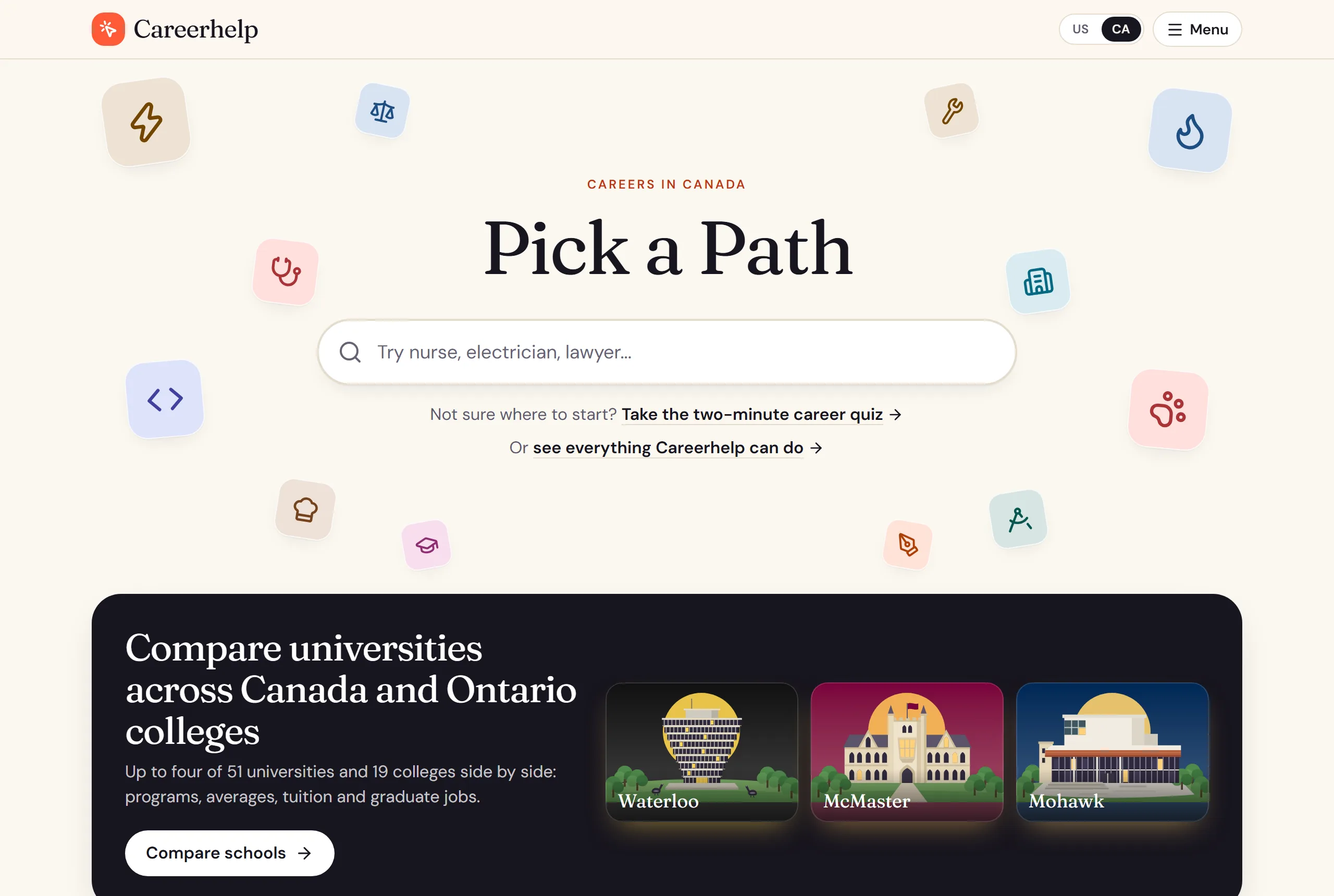
Type a job you have heard of, such as nurse, electrician or lawyer, or browse all 449 careers by field. The same box finds a school, a program, a tool or a guide by name. The home page also opens straight into the lists and the career comparer, the university and college comparer, the program finder and the deadline calendar, so if you arrive with a question rather than a job title, you still have somewhere to go.
2
See the whole career at a glance
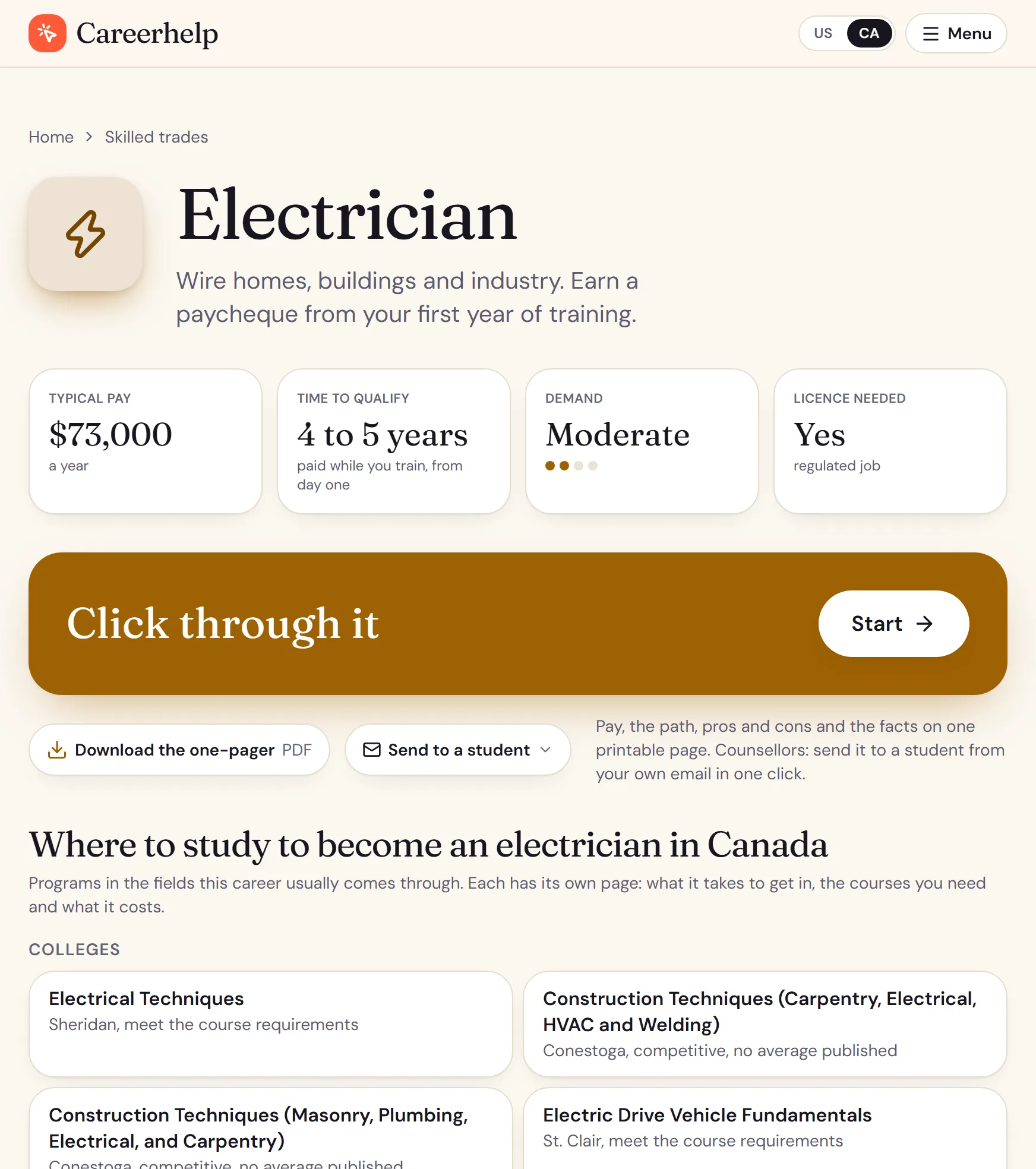
Every career opens on the four facts people ask first: typical pay, how many years it takes after high school, how much demand there is, and whether you need a licence. Under that are plain answers to the questions people actually search, the five parts to click through, a one-page summary to download and print, and the programs where you can study it.
3
Click through it, one screen at a time
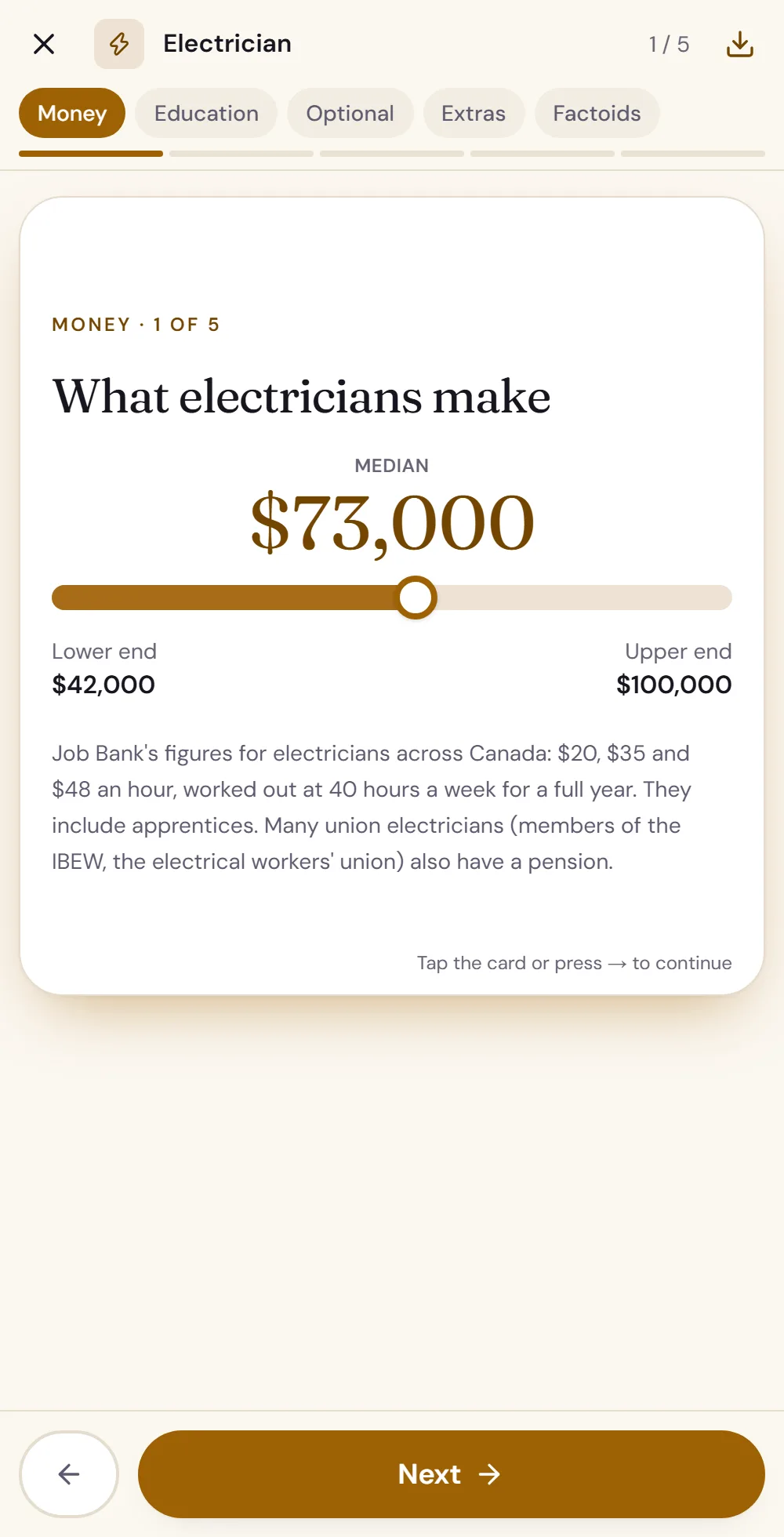
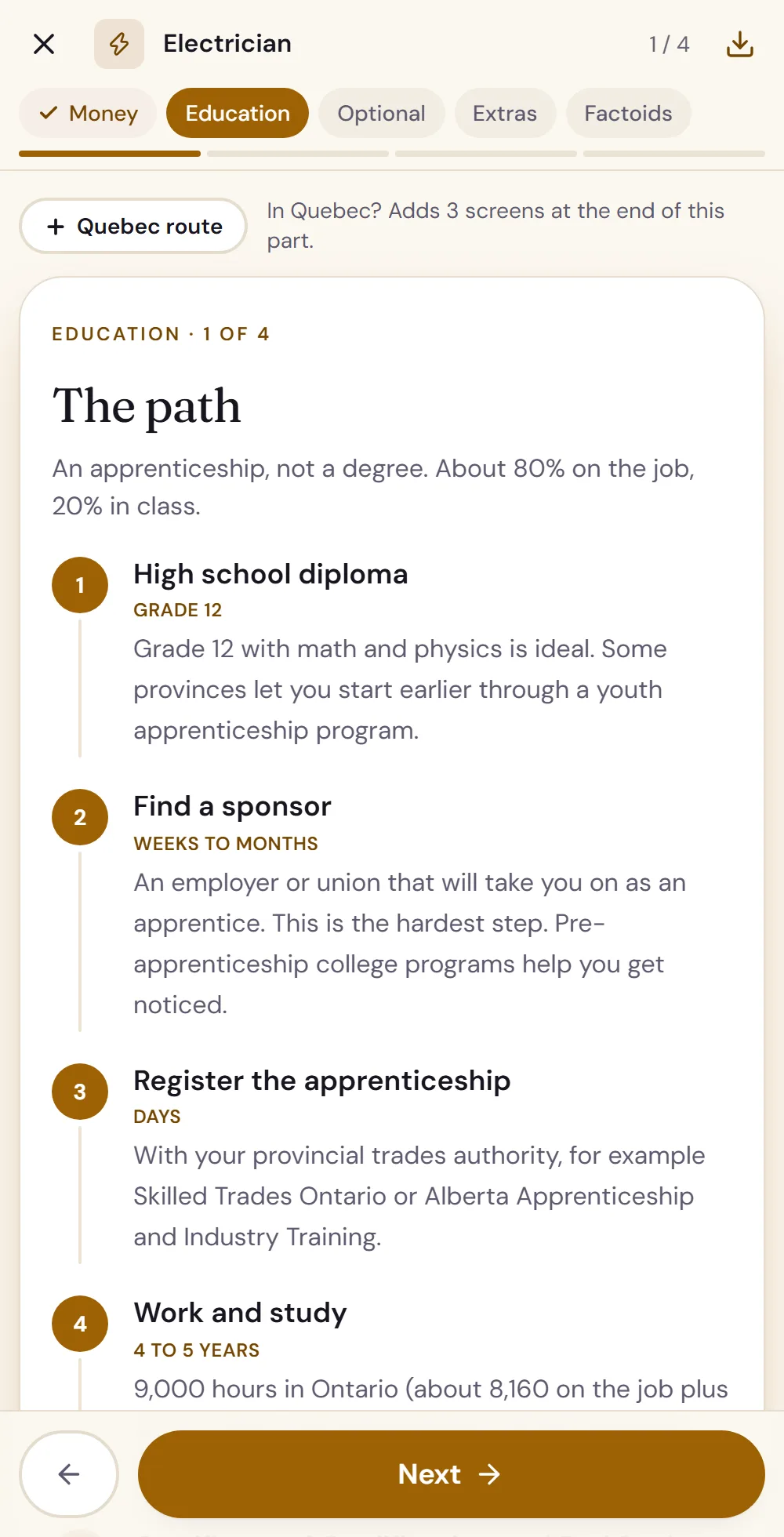
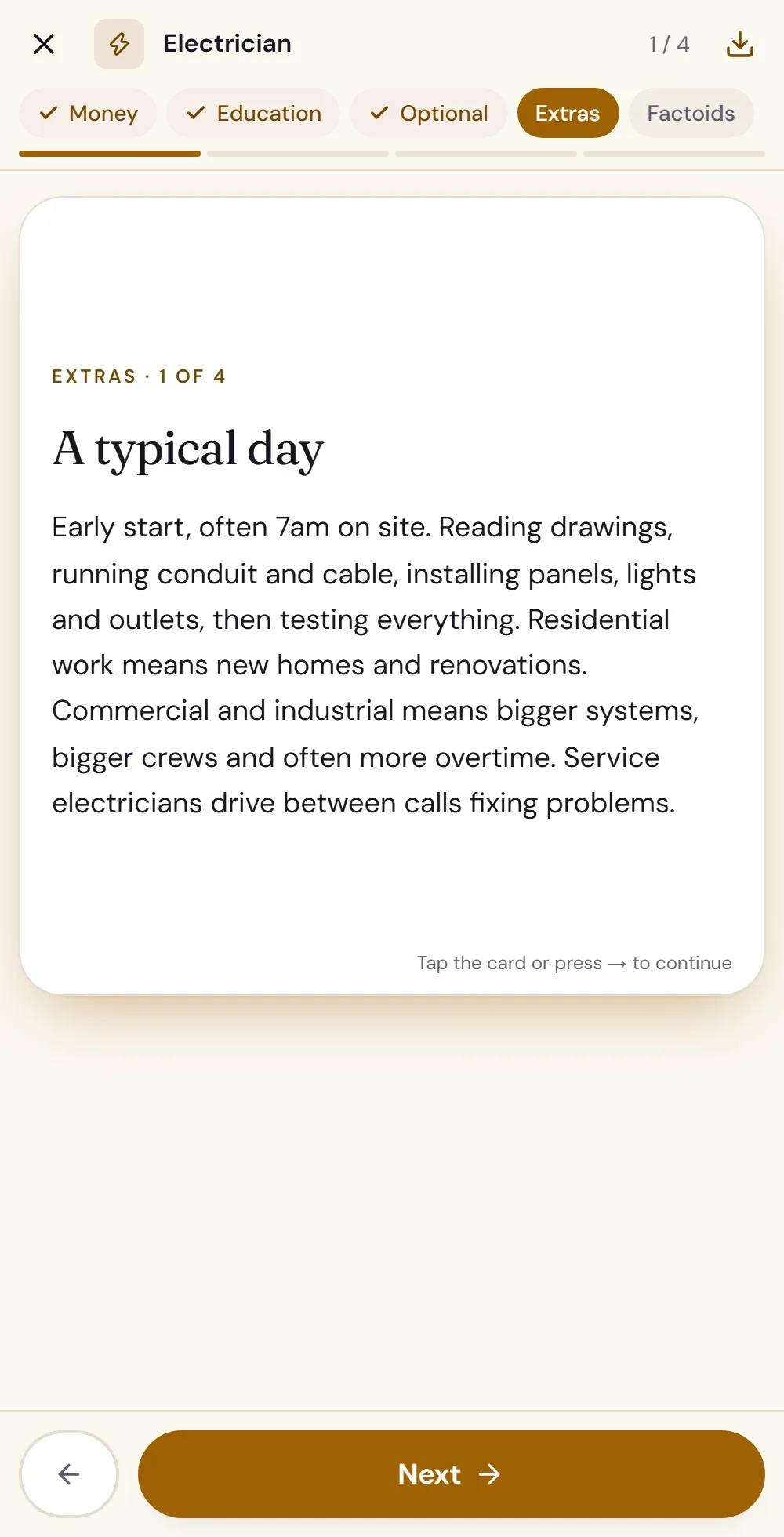
This is the heart of Careerhelp. Each career is split into five parts, Money, Education, Optional, Extras and Factoids, and each part is a few short screens. Tap the card or swipe to move on, so it reads like a story on your phone rather than a wall of text.
Money shows the pay range from the bottom to the top, with the reason for the spread. Education is the exact path, step by step, with how long each step takes and the province's own route where it differs. Extras is a typical day, the pros and cons, and where people in the job actually work. Factoids are the things nobody mentions until you are in it.
4
Not sure where to start? Take the quiz
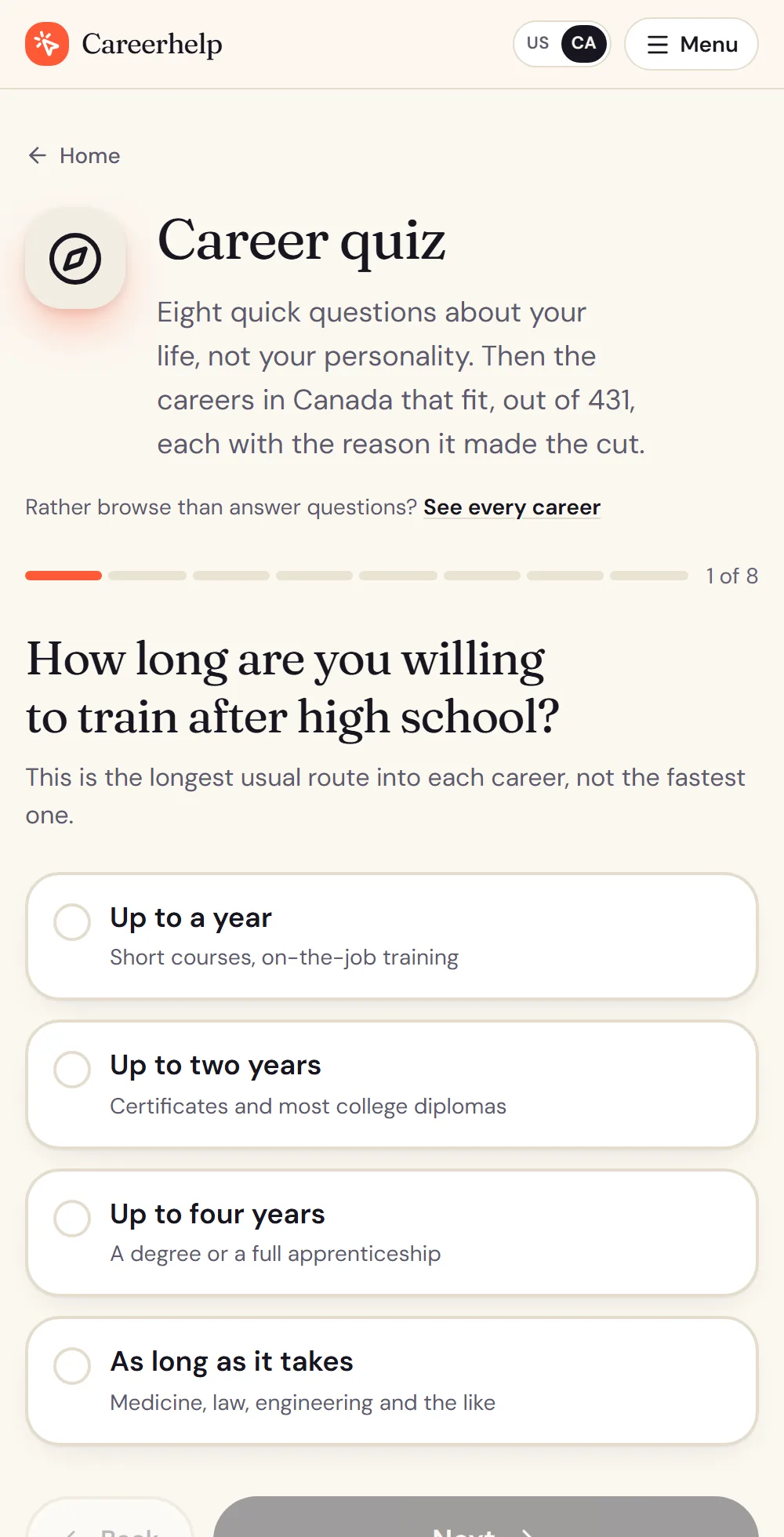
The career quiz asks eight questions about your life, not your personality: how long you are willing to train, what you want to earn, whether you mind a licence exam, where you want to work. Then it gives you a shortlist of the careers that fit, each with the reason it made the cut.
Your answers are saved in the link, so you can bookmark the result, come back to it, or bring it to a guidance appointment.
5
Put careers side by side
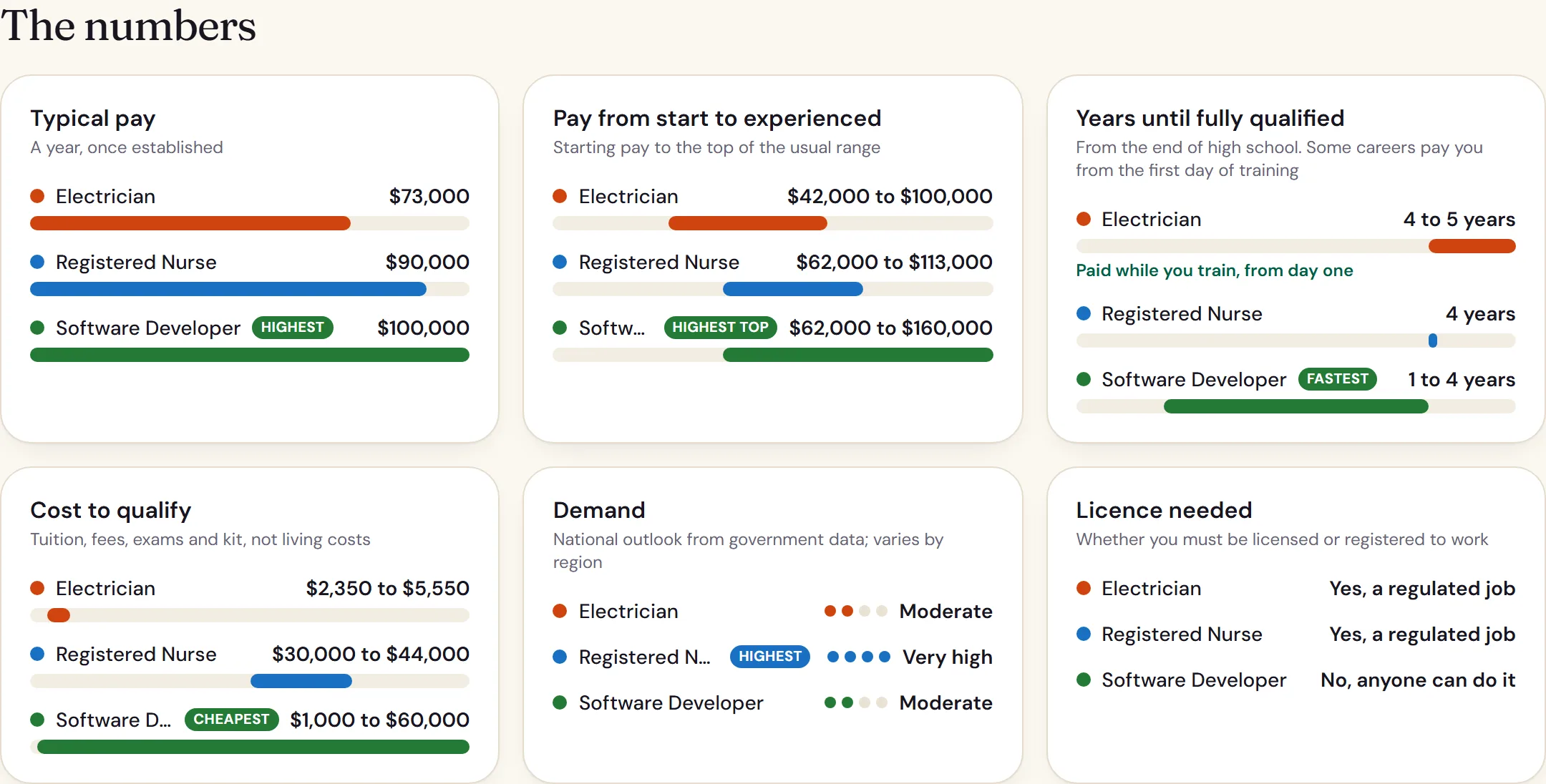
Torn between two or three careers? The career comparer puts up to four next to each other: typical pay, pay from the first year to experienced, years until fully qualified, what it costs to train, demand and whether you need a licence. The best on each is marked, so the trade-offs are plain: the software developer earns most, the nurse has the most demand, and the electrician is paid while training.
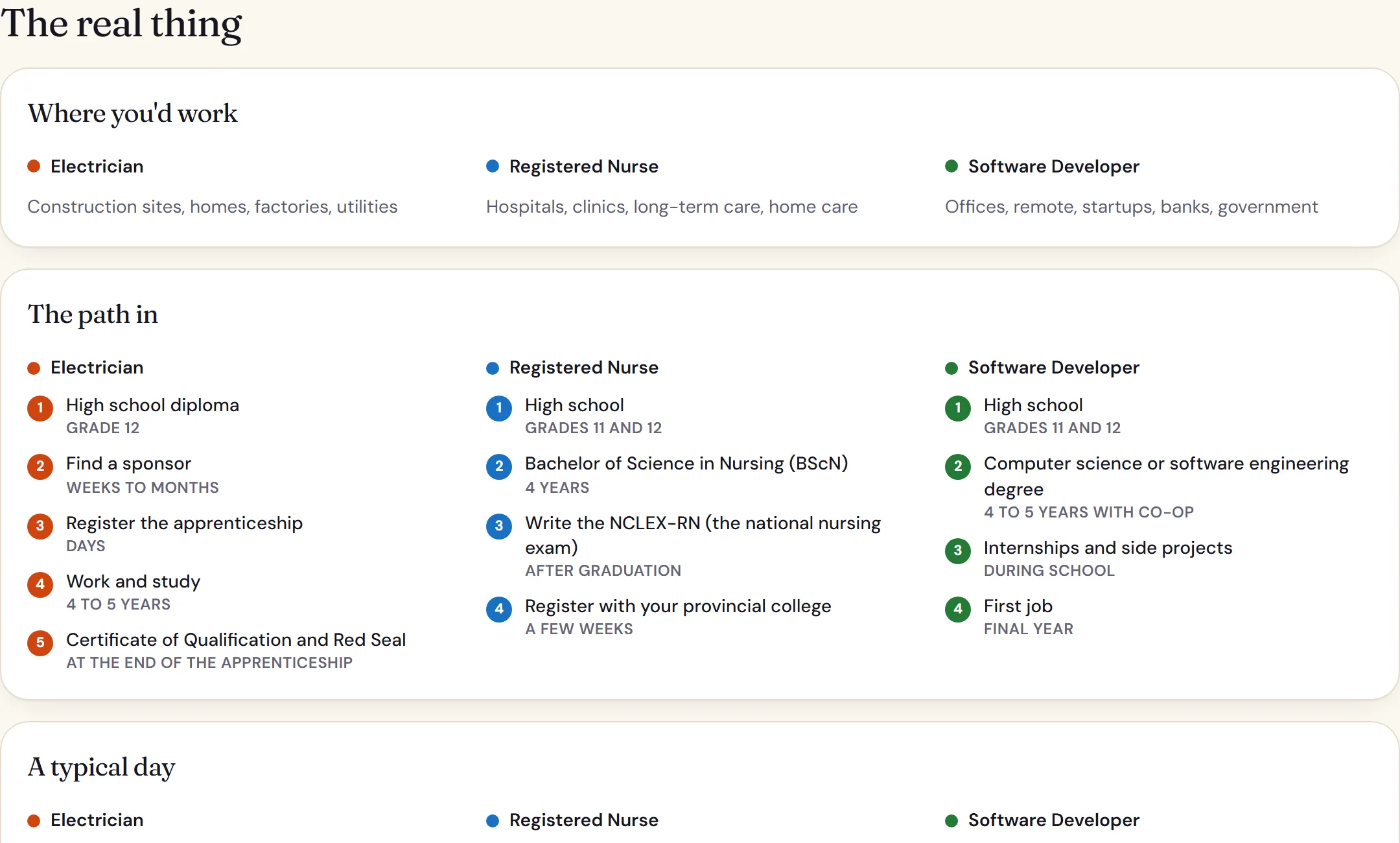
Then the real thing: where each one works, the path in step by step, what a typical day looks like, the good and the hard parts. You can share the comparison as a link, and open any career from it.
6
Compare programs at universities across Canada and 19 Ontario colleges
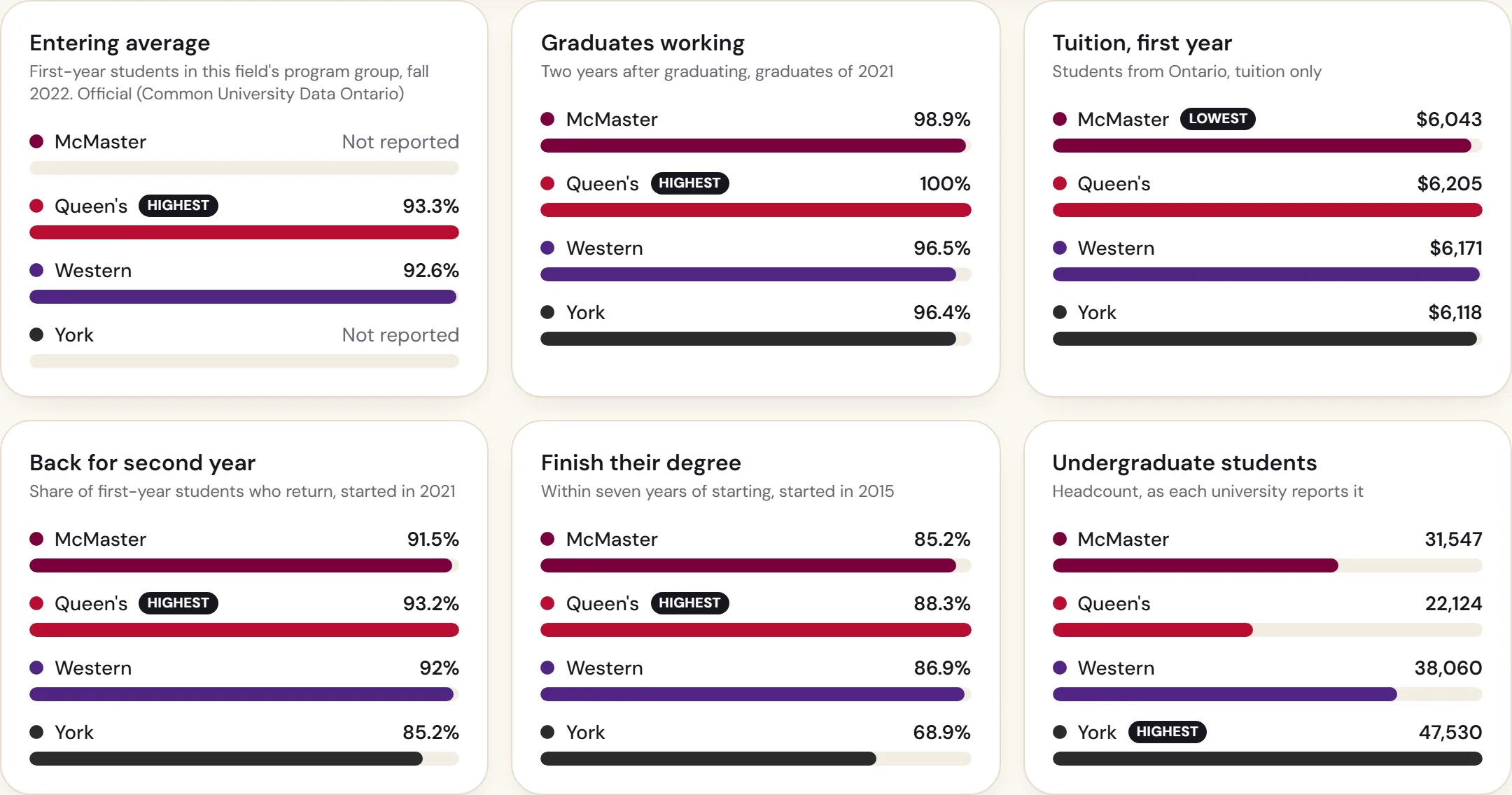
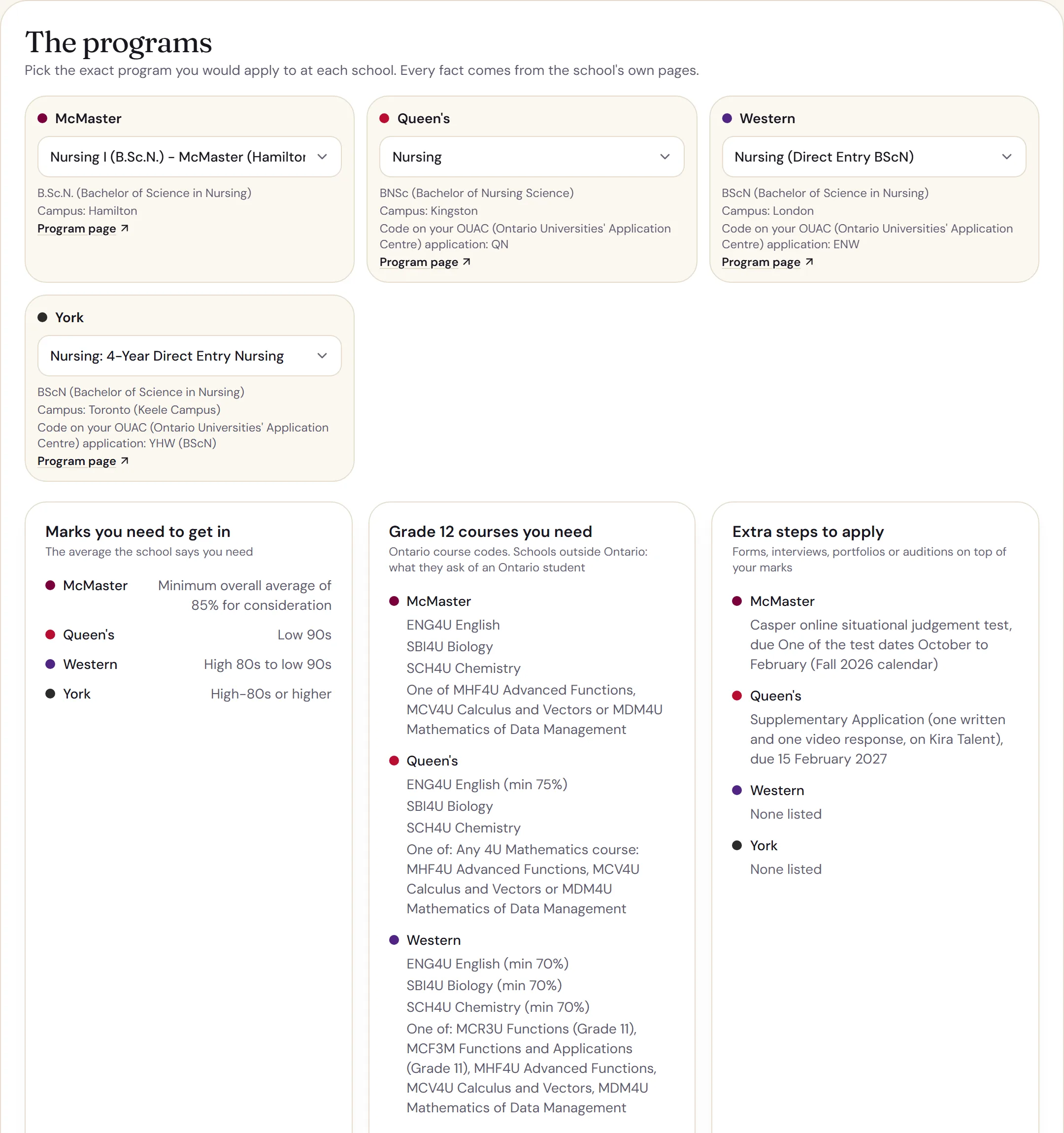
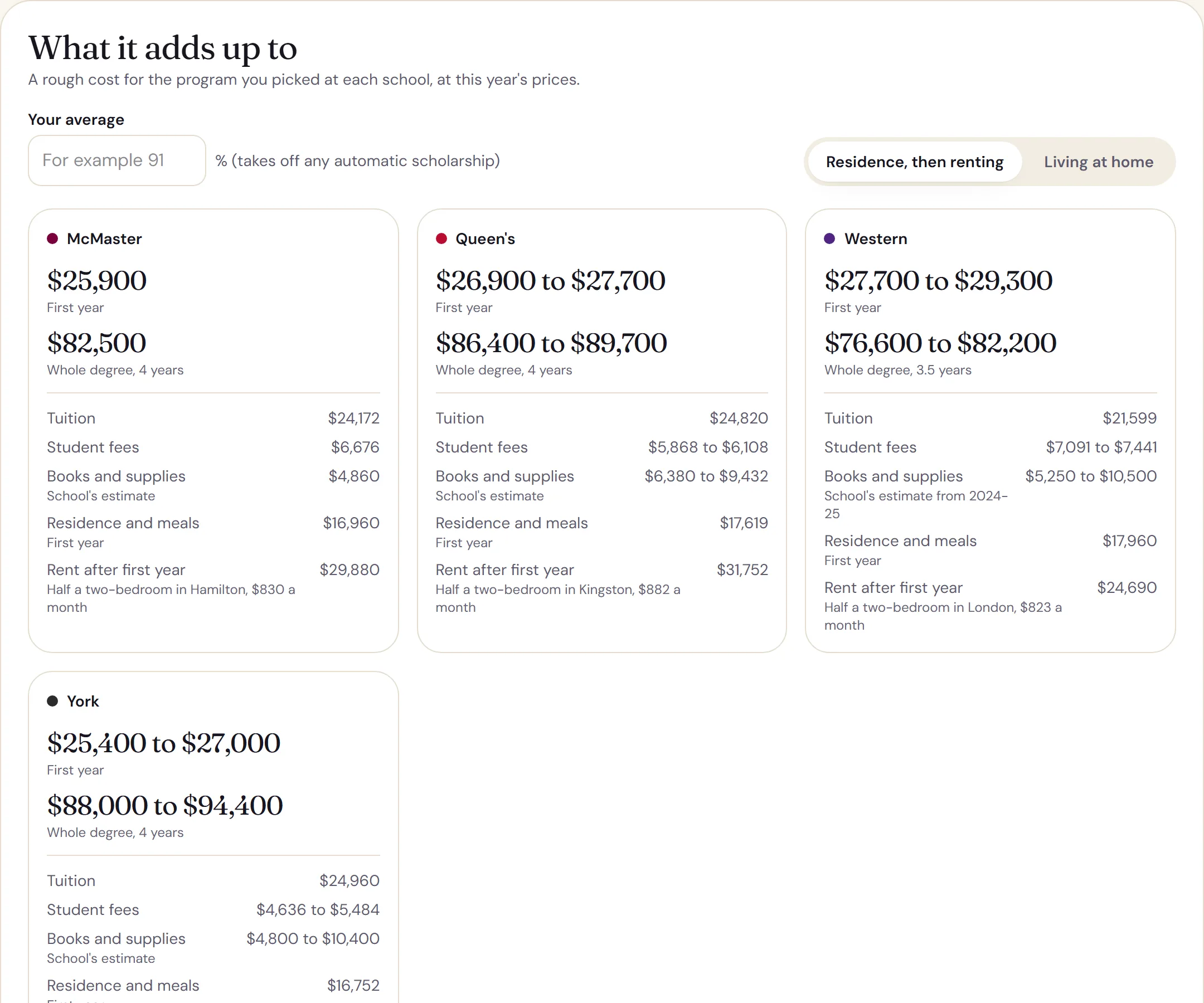
The school comparer covers 2,531 first-year programs at 51 universities (all 23 in Ontario and 28 of the best known in the other provinces) and 1,689 programs at 19 Ontario colleges, on one page. Add up to four schools, pick a field or search a program, and see them side by side. The example below is nursing at McMaster, Queen's, Western and York.
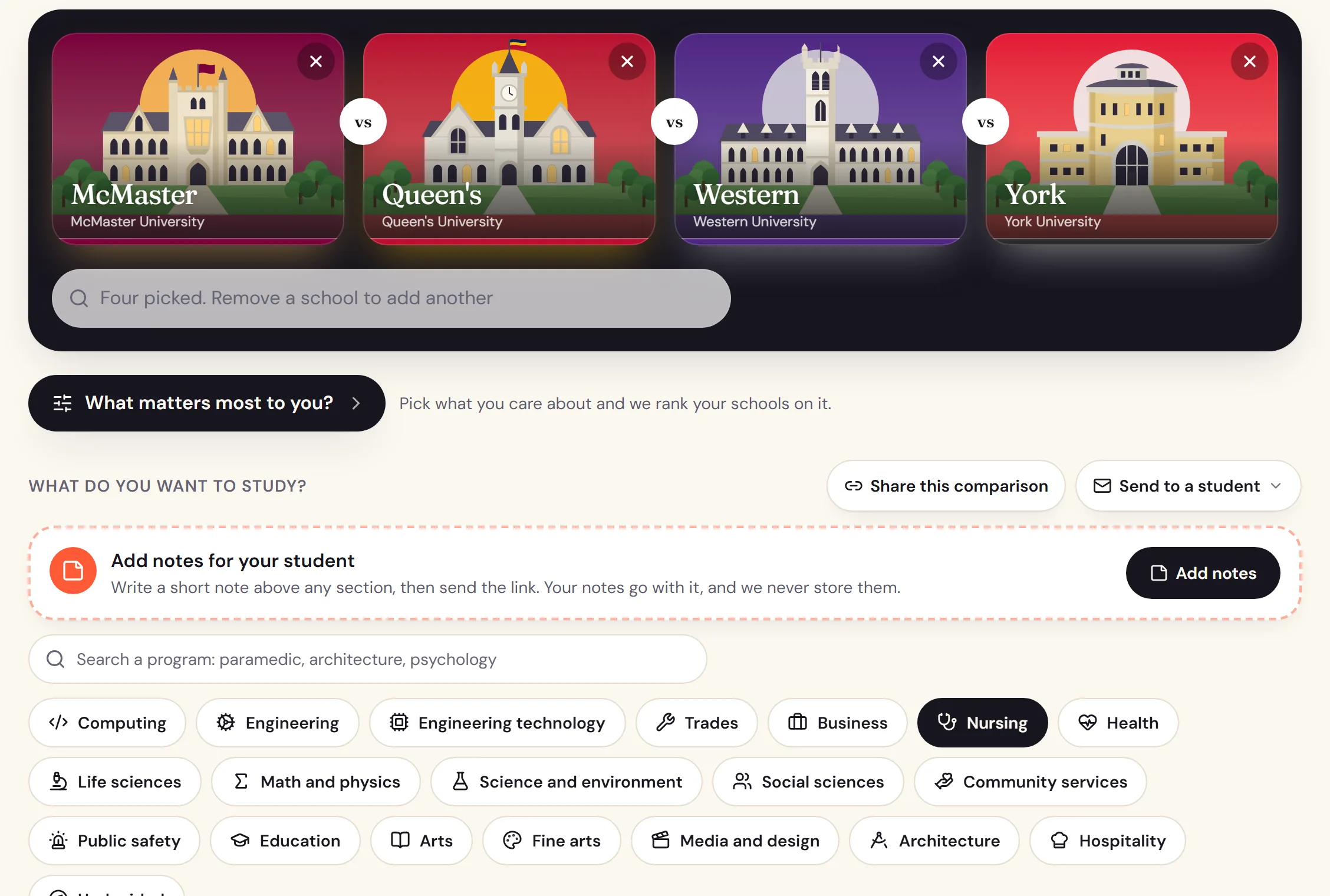
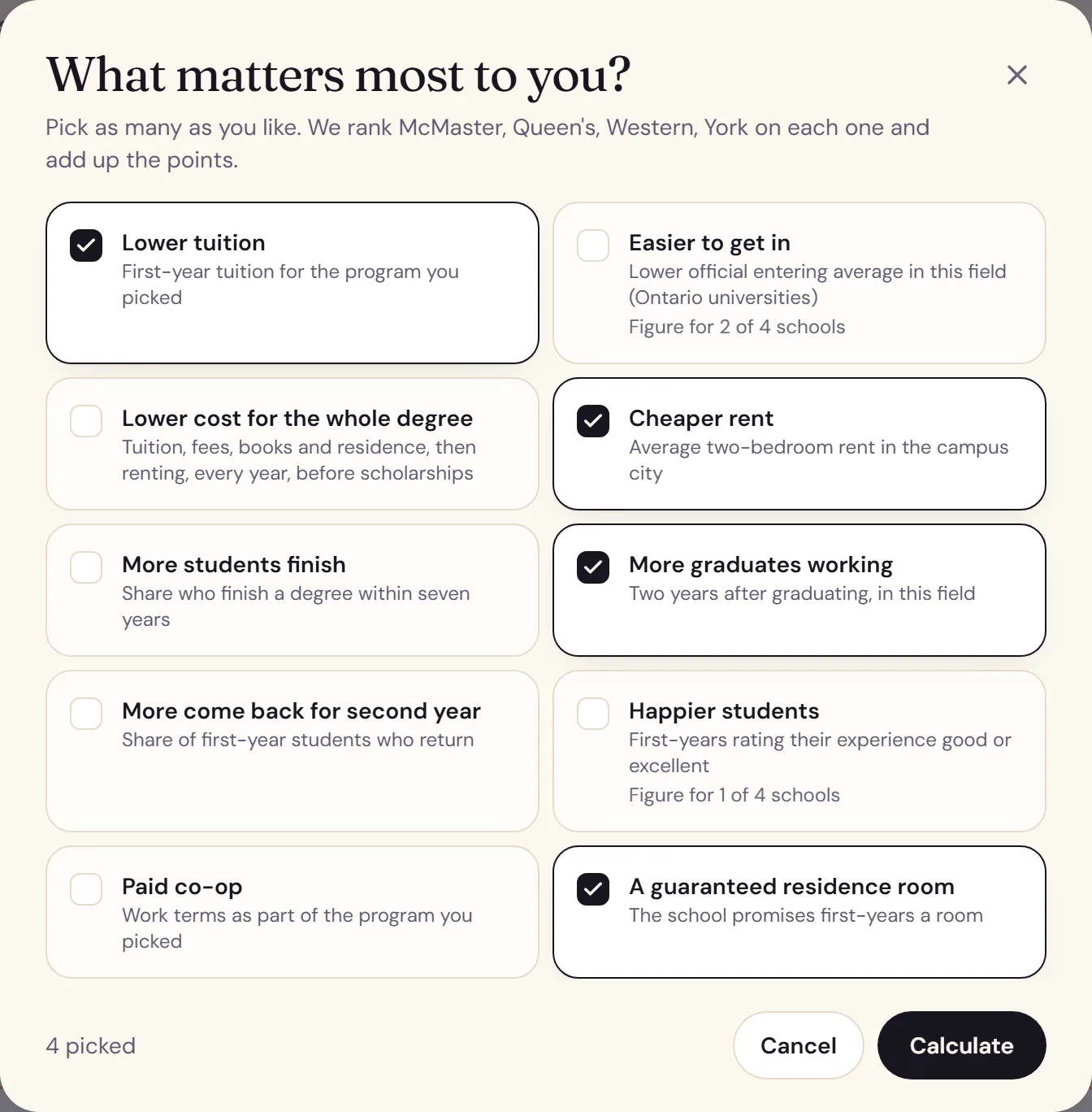
What matters most to you?
Everyone weighs a school differently. One person wants the lowest cost, another wants co-op, another wants a guaranteed residence room. "What matters most to you?" lets you pick the things you care about from ten: tuition, how hard it is to get in, the cost of the whole degree, rent, how many students finish, how many graduates are working, how many come back for second year, how happy students are, paid co-op and a guaranteed room.
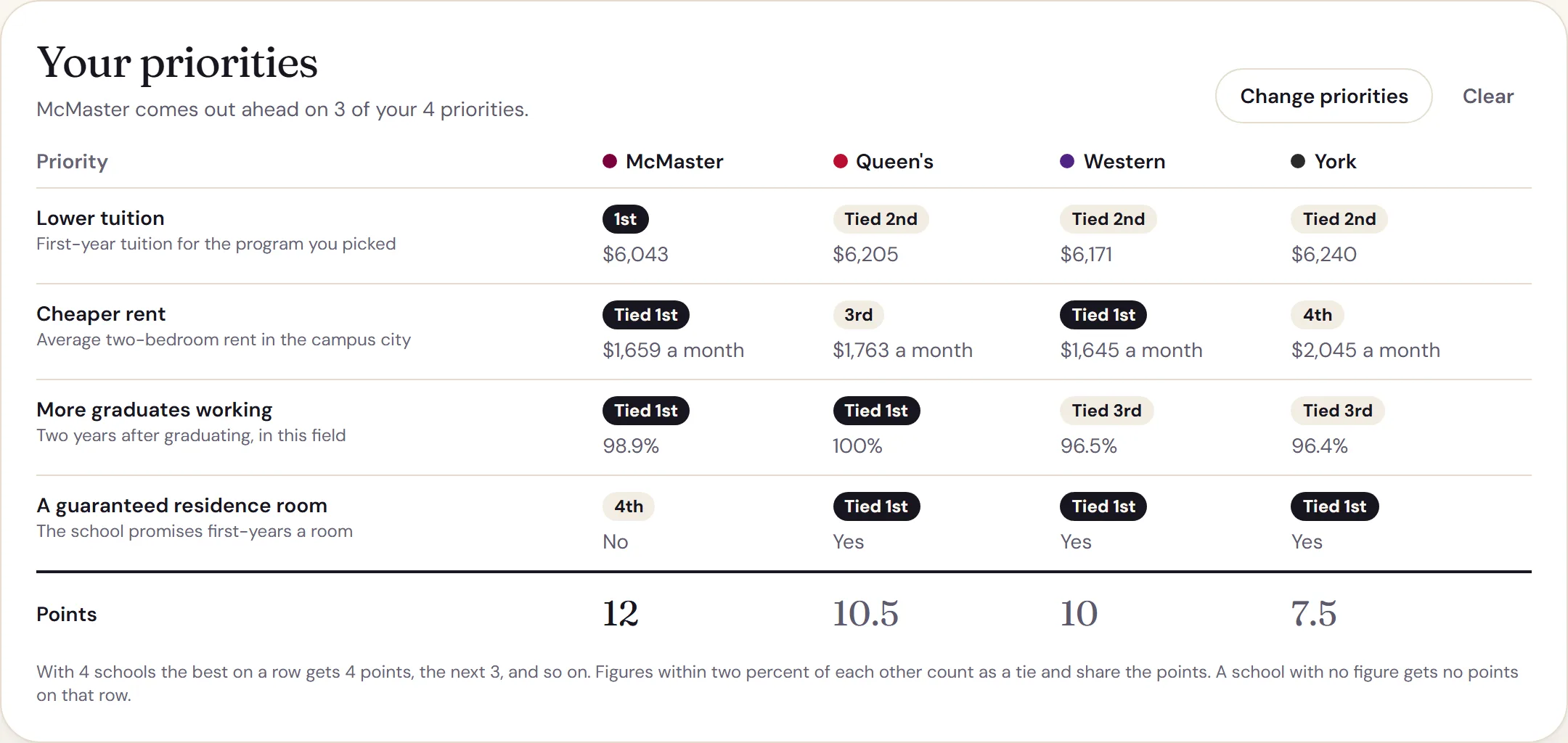
The comparer then ranks the schools on each one and adds up the points, so you see which school comes out ahead for you, and exactly where each school wins and loses. It turns a pile of numbers into a decision.
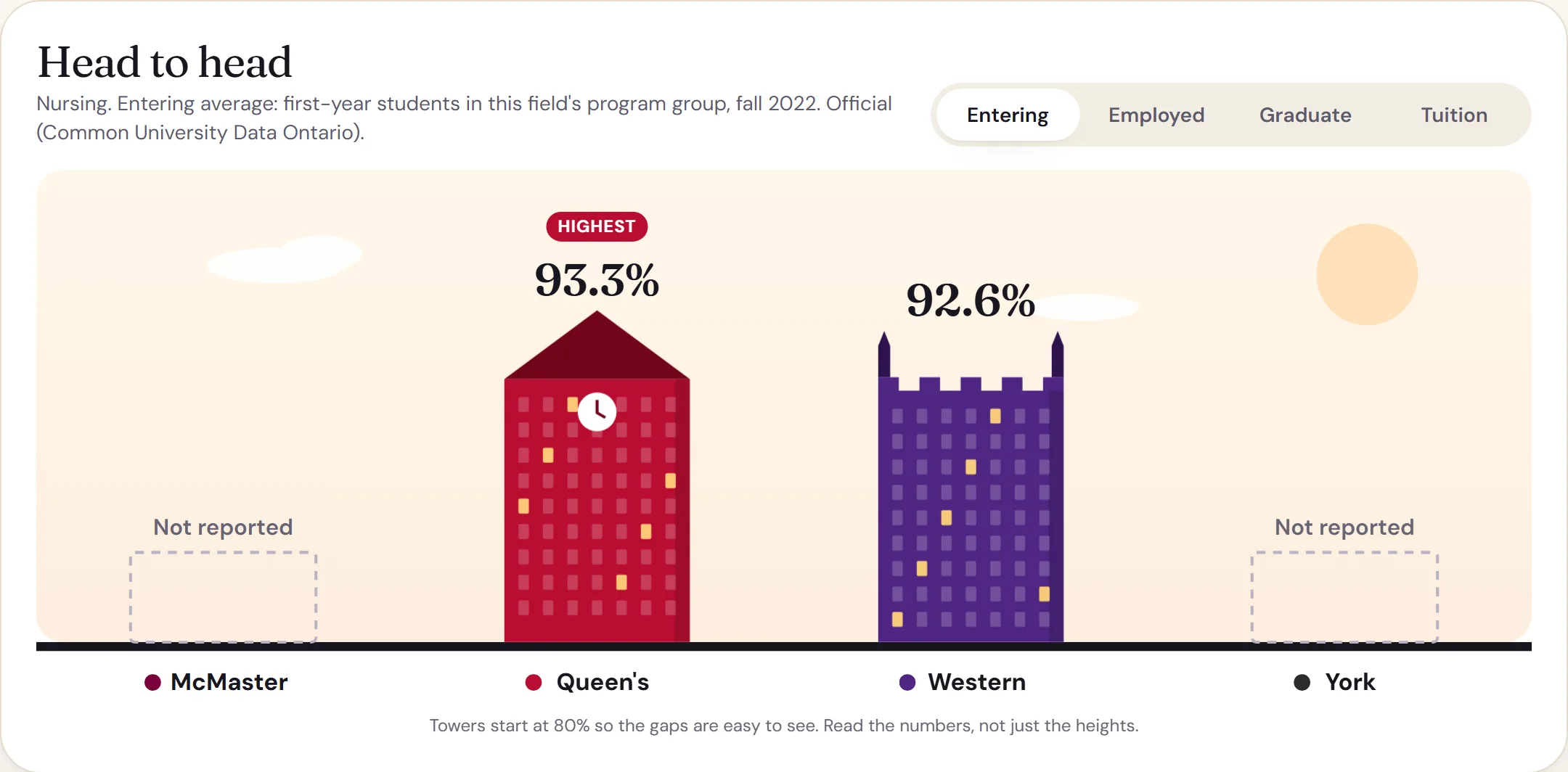
Then the factors that decide where to apply, school against school: the official entering average of first-year students where the Council of Ontario Universities publishes one, how many graduates are working two years later, first-year tuition, how many students come back for second year, how many finish the degree, and how big the school is. The highest and lowest are marked so the differences jump out.
Below that is the exact program at each school, from the school's own pages: the marks it says you need, the Grade 12 courses it asks for with their course codes, extra steps such as Casper (an online test of how you handle real situations) or a supplementary application with their deadlines, co-op, how long it takes, and what you can major in later. This is the part people usually piece together from a dozen tabs.
Finally, what it adds up to: the first year and the whole degree at each school, with tuition, fees, books, residence and rent after first year. Type in your average to take off the scholarships every student with that average gets automatically, or switch to living at home.
Colleges too, and mixed with universities
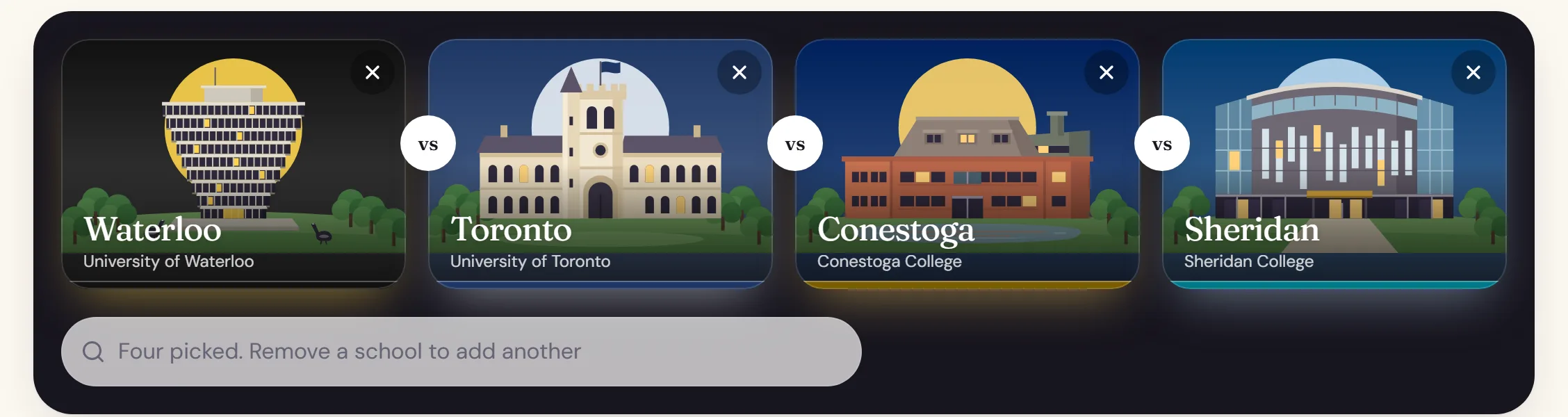
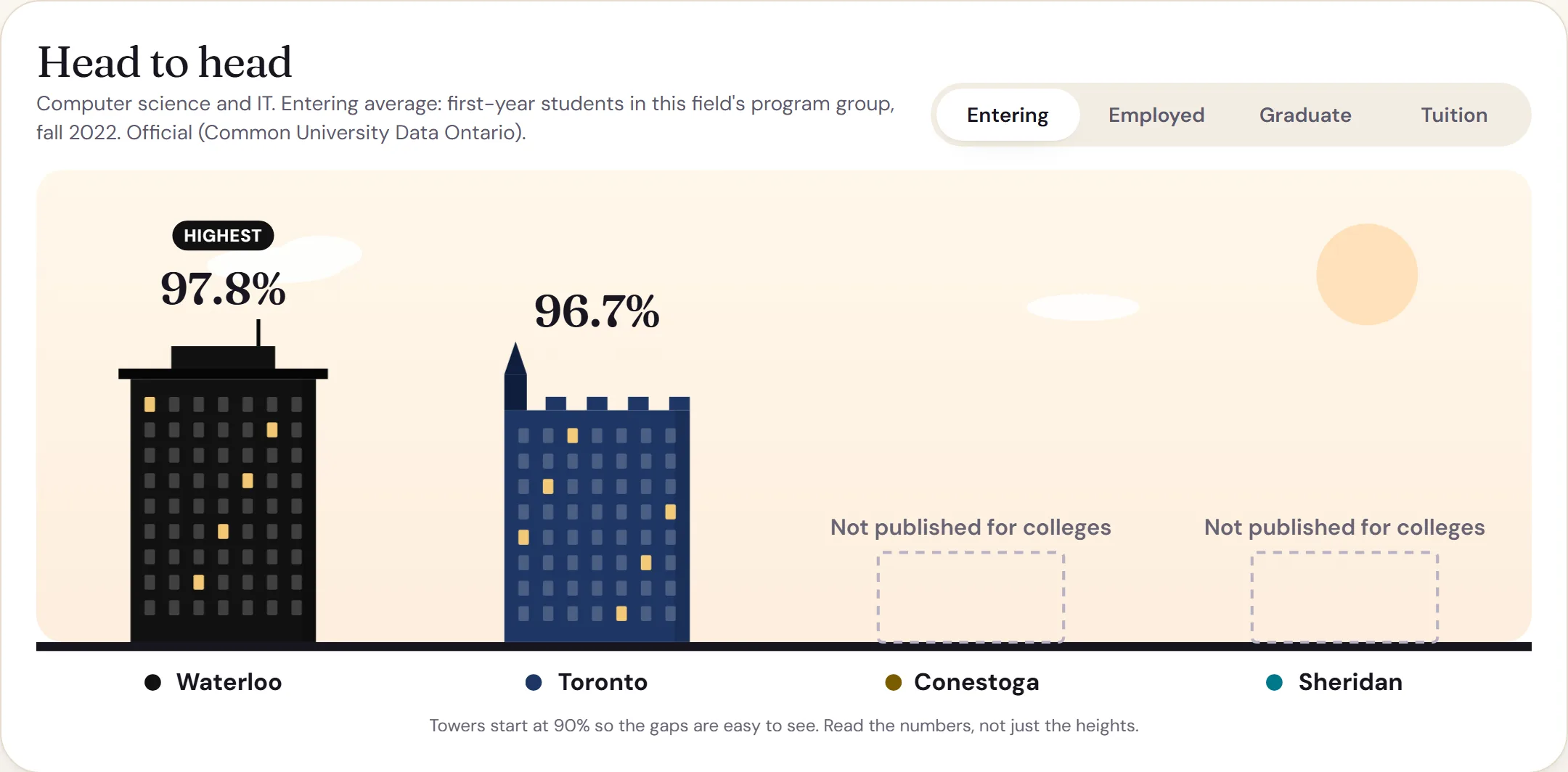
For colleges it shows the courses each program asks for, tuition and fees, co-op, clinical and field placements, start months, residence, and how many graduates are working six months later. Weighing a college diploma against a degree? Drop both onto the same stage, say Waterloo and Toronto against Conestoga and Sheridan in computer science.
Universities and colleges measure some things differently, so where they do, each row says how: graduates working two years after a degree, six months after a college program.
7
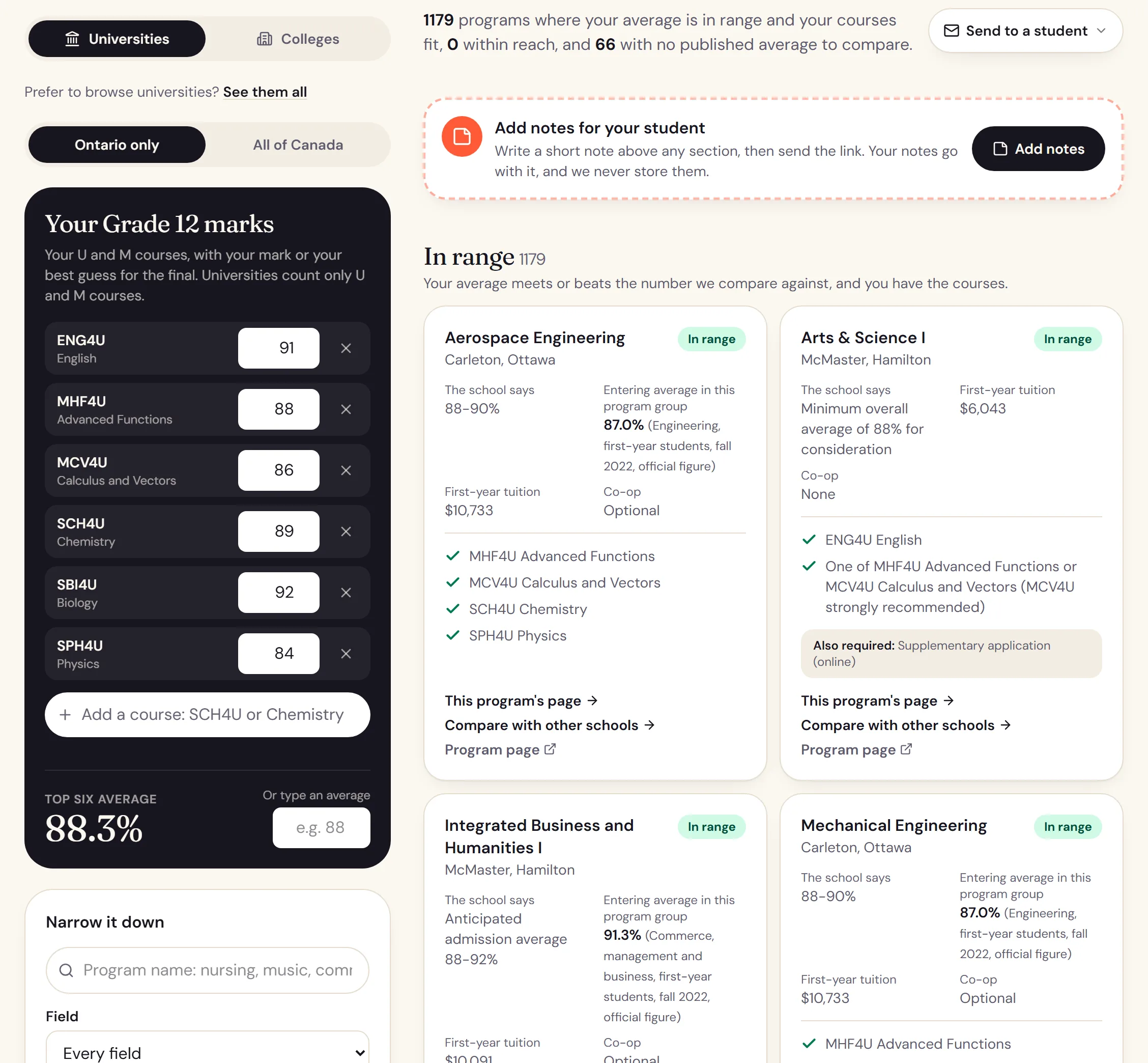
Find the programs that fit your top 6 marks
Type in your Grade 12 courses and marks, or just your average. The program finder checks every program at the Ontario universities and the 19 Ontario colleges on the site against them and shows the ones your courses qualify you for, with a tick or a cross next to every required course. For universities it also shows how your average compares with what the school publishes: in range, within reach, or above your average for now, with the official entering average of the students who started in that program group.
Narrow it by field, tuition, co-op, school, or for colleges by certificate, diploma or degree. Switch to all of Canada and the universities in the other provinces join in, each averaging your marks the way it does for Ontario applicants. It answers the question every Grade 12 student has in the fall: with these marks, where can I actually go?
8
Every date to apply, on one calendar
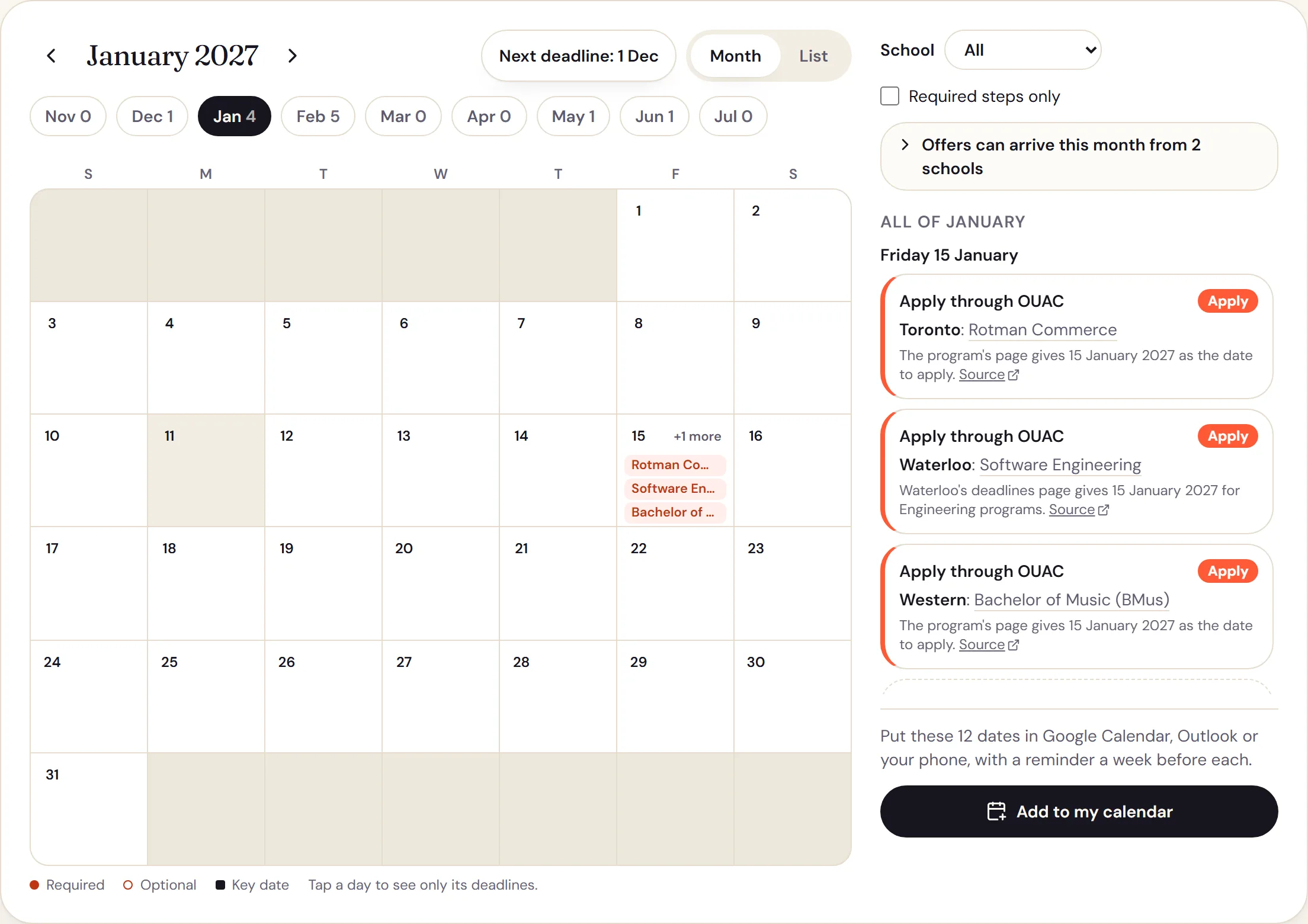
Add the programs you are applying to, from all 1,312 at 22 Ontario universities, and the calendar shows every date that matters for them: the date to apply through OUAC (the Ontario Universities' Application Centre), and every test, portfolio, audition, interview and supplementary form with the day it is due. Programs that ask for nothing extra say so: your Grade 12 marks and courses decide them.
Every date was read on the school's own page and links to it. Where a program's page gives no date to apply, the school's own dates page does; the few still unconfirmed are marked "Apply: check". The dates every applicant shares are there too, with the months each school sends offers. Put them all in your phone's calendar with a reminder a week before each, and steps with no fixed date are listed underneath so none is missed.
9
Before you drop a course, see what it keeps open
Every Grade 12 course has its own page: every program on the site at an Ontario university or college that needs it with no substitute, and every one where it is one of the courses that counts. Or search a program and see the courses it asks for. Use it before choosing Grade 11 and 12 courses, when dropping calculus or chemistry quietly closes doors.
10
Prepare every supplementary application
Pick your programs and see every extra step they ask for beyond marks: forms, videos, Casper (an online test of how you handle real situations), portfolios, auditions and interviews. Each one has the school's exact questions (194 of them, word for word), the word and time limits, the fee, what the school says it looks for, and a plan of dates worked back from the deadline.
Draft your answers beside each question with a live word count, practise timed answers for video steps, and download your drafts. They stay in your own browser and never reach us. From the deadline calendar, the "Prepare your supp app" button (supp app is short for supplementary application) opens it with your program already picked.
11
Start a skilled trade
Every Ontario trade side by side: whether you need a licence to work, Red Seal, the hours on the job and in class, the grade you need to start, and the least an apprentice earns while training. Search any trade, and the "How to start any trade" button explains finding a sponsor, the youth apprenticeship in Grade 11 and 12, pre-apprenticeship programs and the grants. Each trade career page has the same route.
12
Support at each school, and other ways in
At the Ontario universities and the 19 Ontario colleges on the site: the office for students with a disability and how to register, the Indigenous admission pathway and student centre, access and upgrading programs for students who need another route in, and the rule for mature students, each quoted from the school's own pages. One page compares them all; each school's page has the details.
13
Every university and college on its own page
51 universities across Canada and 19 Ontario colleges, each on its own page: the easiest and hardest programs to get into, the official entering averages of their first-year students by program group, every program with the average the school publishes, first-year cost, residence, rent, scholarships you get automatically at your average, and what graduates in each field earn.
Each page has a search box for that school's programs, and the universities page has one that finds any school or any program at any school.
14
Every program on its own page
4,220 programs, each with the admission average the school publishes, the official entering average of first-year students in its program group, the Grade 12 courses it asks for, any supplementary application and its deadline, what the whole degree costs, where else you can study the same thing, and what to do if you don't get in.
Every field is also ranked on one page, by the admission average each school publishes: nursing, ranked.
15
Browse the lists
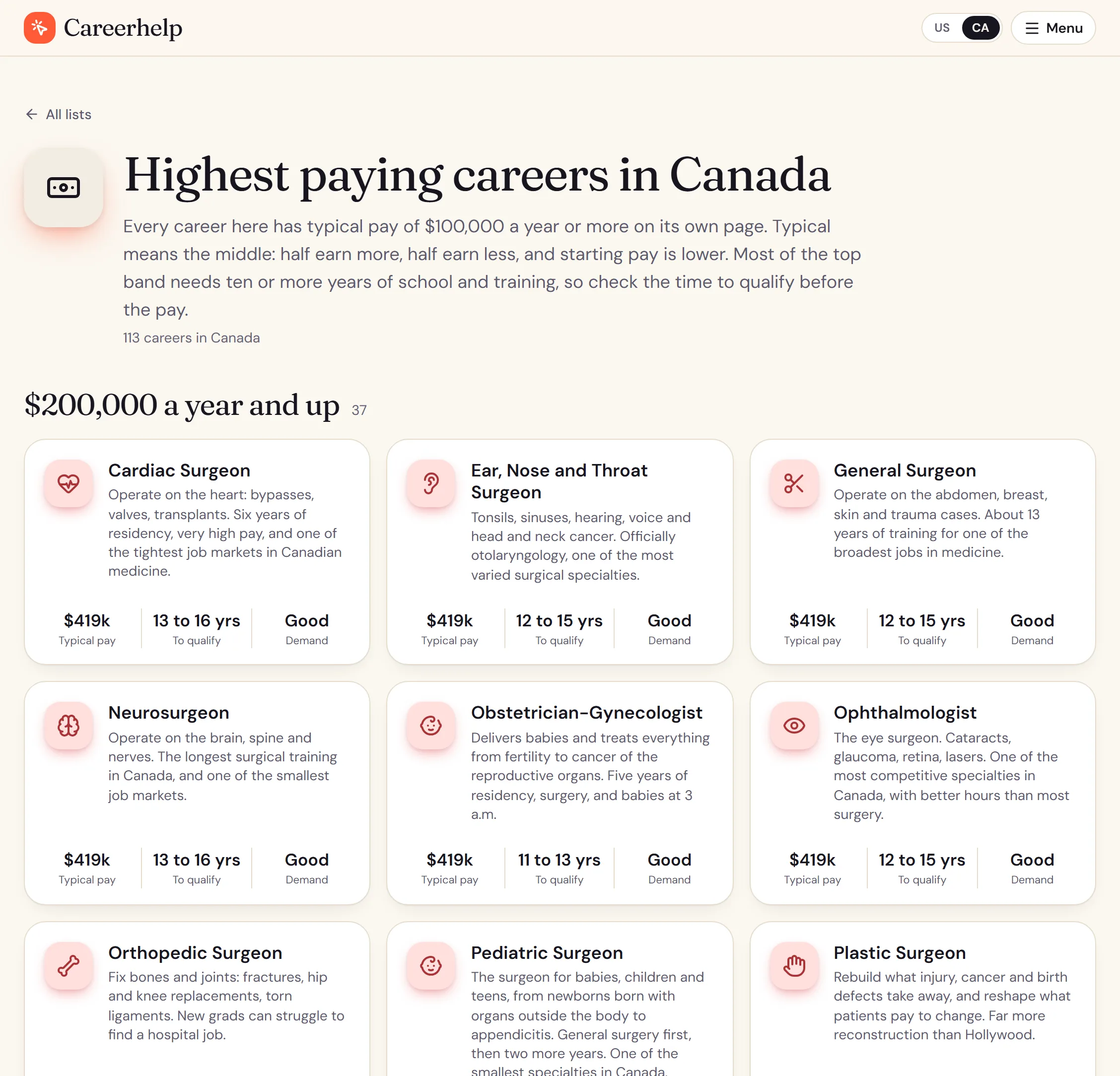
18 lists answer the questions people ask most: the highest paying careers, careers in demand, careers you can qualify for in two years or less, careers you can do from home, careers that cost under $5,000 to train for, and one for every field. Each card shows pay, years to qualify and demand, so you can scan a whole field in a minute.
16
Read the guides
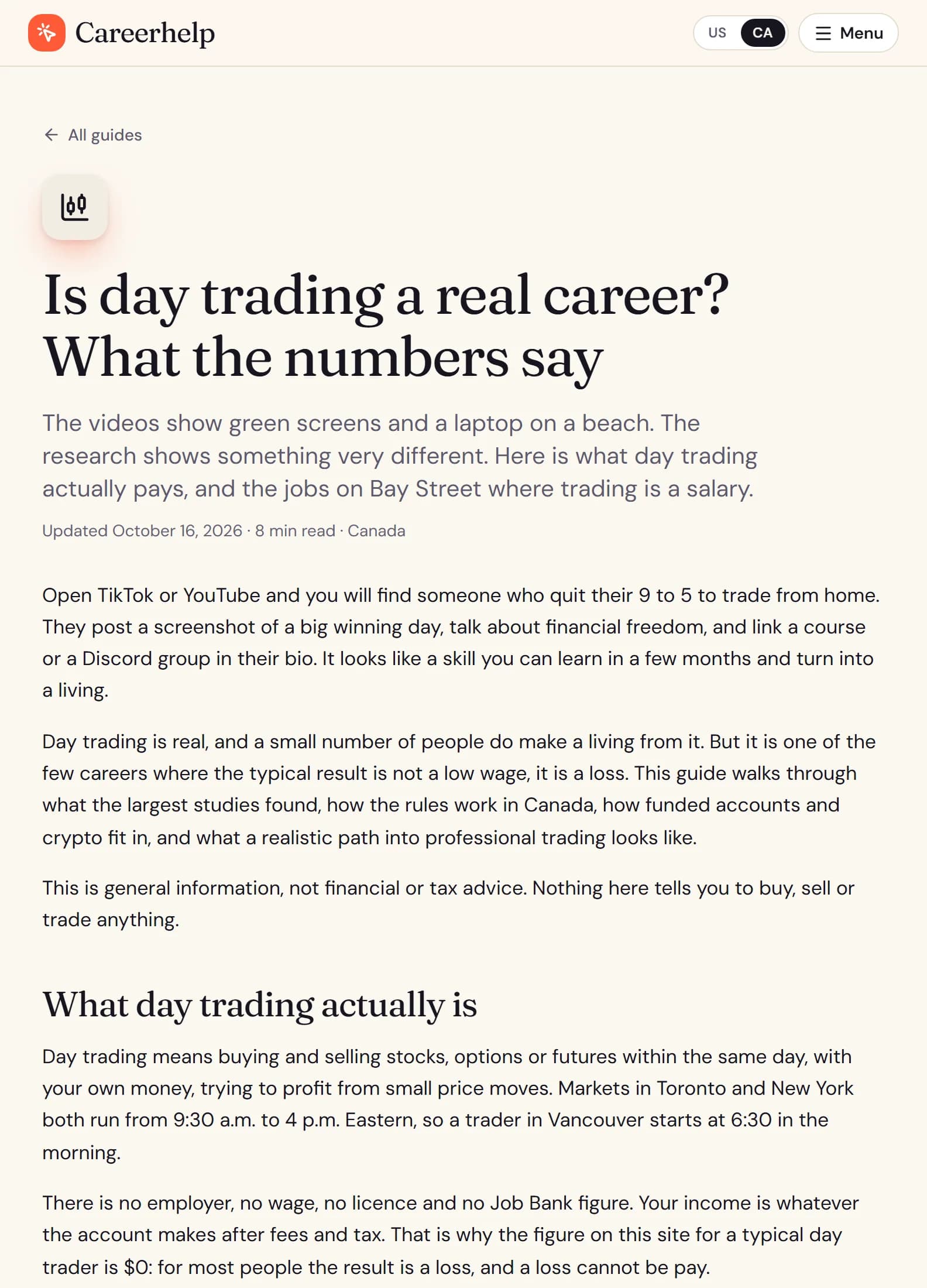
The 15 guides for students answer three kinds of question. The admissions ones: whether Grade 11 marks matter, how Ontario universities calculate your top 6 average, and when offers come out. What you see on TikTok and YouTube: whether day trading is a real career, how much YouTubers make, whether dropshipping still works, how to spot a make-money-online scam. And how to get into a field: investment banking, finance, starting a business, the jobs that did not exist 20 years ago. Each one uses the same sourced figures as the rest of the site, and links straight to the careers it talks about.
The other 4 are written for parents, in plain words: how high school leads to college, university or a trade, what course codes mean, what it all really costs, and whether a trade is a good choice. Guides for parents
17
For counsellors and teachers: send it with your notes
Every comparison, finder result, calendar and school or program page can go to a student as a link. "Send to a student" opens your own email with a short summary and the link already written, or copies it to paste anywhere; Careerhelp never sees the address.
"Add notes for your student" lets you write a short note above any section, such as "ask about the co-op here" or "this is your safety school". The notes travel inside the link itself, so the student sees them when they open it, and nothing is stored on our side. There are no accounts for you or your students.
The guides for parents work the same way: add your notes, then "Send to a parent" from your own email.
18
Check where any number came from
Every page lists the sources its figures come from, at the bottom of the page. The sources and methods pages go further: how each part of the site was built, how reliable each kind of number is, and the result of re-checking every one of the site's source links. Every correction is listed with its date on the corrections page, and an independent monitor publishes whether the site has been up on its status page.
Long pages get a button in the bottom corner that says where you are and jumps to any section. Spot a mistake anywhere? The box at the bottom of every page sends it straight to the person who fixes it.
No sign-up, and new every month
Today everything above is open to everyone, with no account and nothing to sign up for, and the careers, guides and lists stay free for good. New careers, programs and tools go live every month, the day they are finished.